5 Common SSD Myths You Should Stop Believing
From M.2 drives and defragmentation to NVMe stickers and power cuts, here is what is true and what is outdated HDD-era advice.
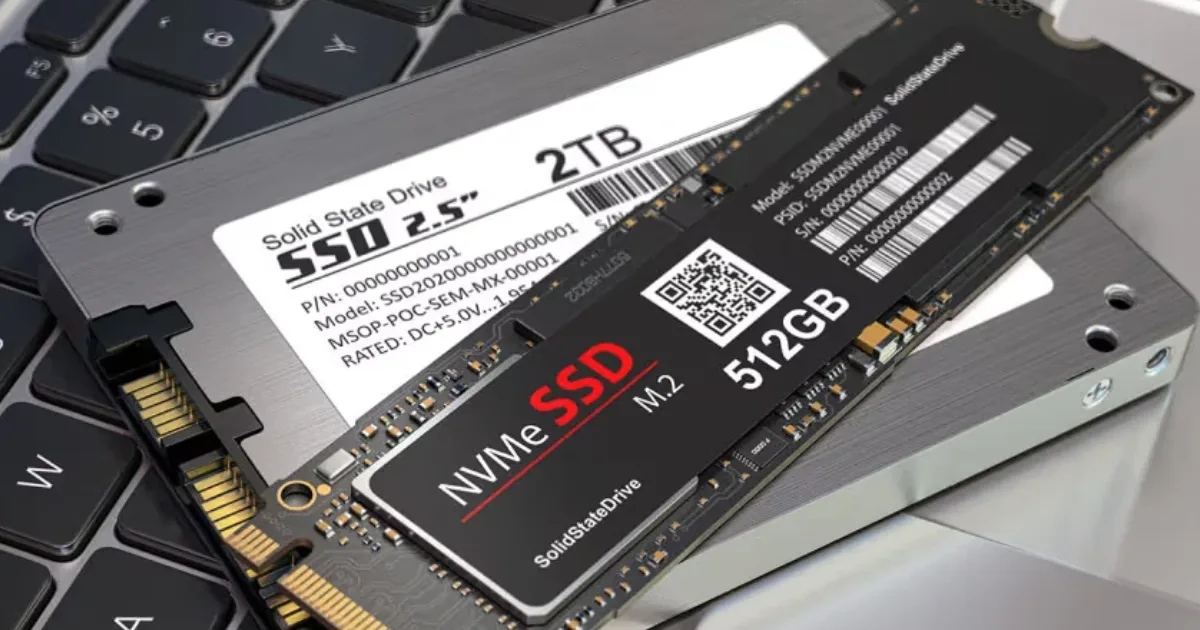
Not all M.2 drives are NVMe, HDDs aren’t obsolete, and SSDs don’t need defragmenting. Here are five common SSD myths and the facts.
Solid-state drives (SSDs) have changed computer storage, but misconceptions about them still affect how people buy, use and maintain them. Many come from hard disk drive (HDD) habits, and some older advice no longer applies. Here are five common myths and the facts, according to a technology report.
1. All M.2 Drives Are NVMe
M.2 describes the physical form factor, not the interface. M.2 drives can use SATA or PCIe-based NVMe. SATA drives generally reach about 550 MB/s in sequential reads, while PCIe 5.0 NVMe drives can approach 15,000 MB/s. Some motherboard slots support NVMe but not SATA M.2 drives, so check specifications before buying.
2. SSDs Have Made HDDs Obsolete
SSDs are much faster and more resistant to shock because they have no moving parts. HDDs still cost less per unit of storage and suit bulk storage of photos, videos and backups. The report compared a 1TB external HDD at $119 with a 1TB external SSD at $212, though prices vary by model, retailer and market.
3. SSDs Need Defragmenting
Defragmentation helped HDDs by reducing read-head movement. SSDs use electronic memory cells, so scattered data does not cause the same slowdown. Traditional defragmentation adds unnecessary writes that count toward the drive’s TBW rating, so use the operating system’s built-in optimisation tools instead.
4. Remove the Sticker on an NVMe Drive
Many labels include thin thermally conductive or metallic layers that help move heat away. Removing the label can interfere with cooling, damage components and may affect the warranty. If extra cooling is needed, use a compatible heatsink.
5. Power Outages Damage SSDs
An unexpected shutdown does not carry the same physical risk as for HDDs, but SSDs are not fully immune. A power loss during a write can corrupt files or affect the operating system. A UPS and regular backups help protect data.
Understanding how SSDs differ from HDDs can help users avoid unnecessary maintenance, make better buying decisions and protect their data.
Related stories
 Breaking
AI Boom Sends Data Centres Hunting for Used Turbines
 Technology
Nvidia Shares Fall as Board Probes Reports on CEO
 Technology
Elon Musk Says Absence of Alien Signs Troubles Him
 Technology
Pakistan Ranks Among YouTube’s Biggest Audiences
 Technology
Spotify Plans AI Music Remix Service for 2027 Launch
 Technology