How to recover deleted texts on iPhone using iCloud
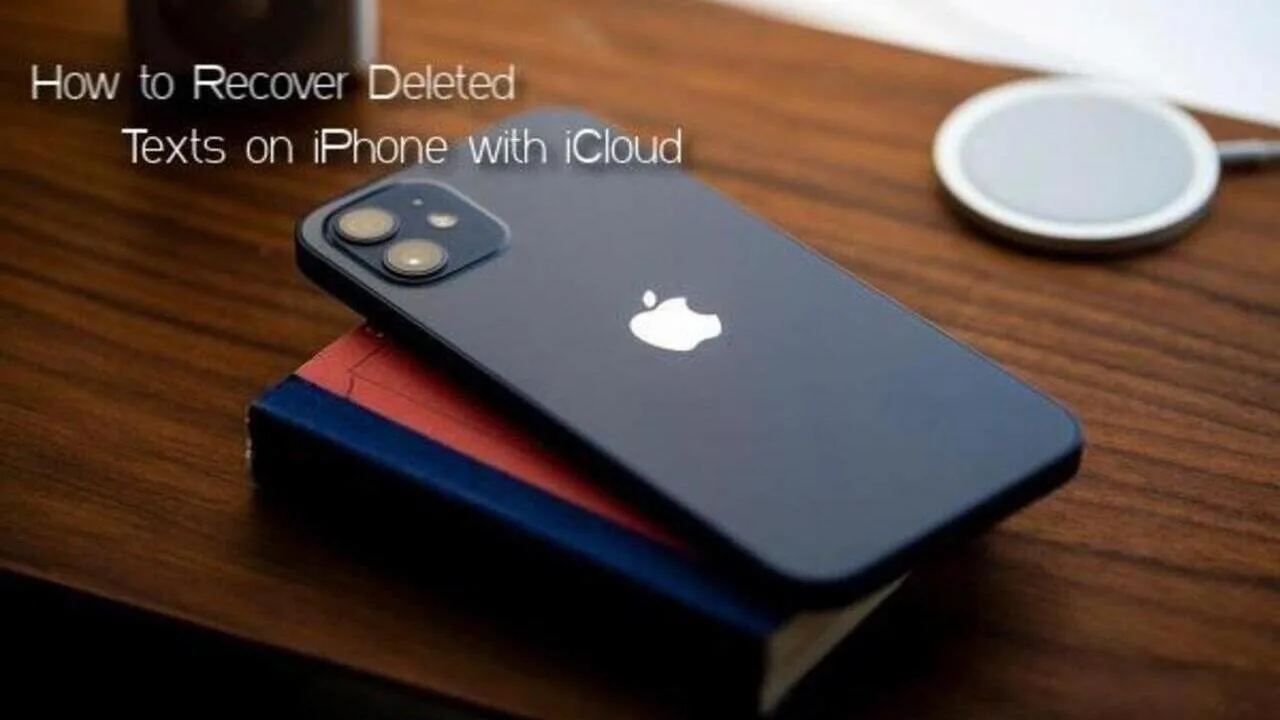
Apple has now made it a possibility to recover deleted texts on iPhone using iCloud integration.
But retrieving texts from an iCloud backup requires some prior knowledge. There is not a standalone option provided by the iPhone maker to restore deleted messages in just one go.
How to recover deleted texts on iPhone using an iCloud backup
Try these steps enumerated below, but it is important to point out that you need to have Messages enabled as a part of your iCloud backups to restore your previous text messages from the cloud.
- Go to Settings and then tap on your Apple ID profile at the top.
- Open iCloud > Manage Storage > Backups and then select the backup that was taken prior to the date when you deleted your text messages that you want to recover.
- Scroll down to find the Messages backup and make sure that it is shown with some data.
- Now, you need to reset your iPhone. This will remove all the content and data stored. So, you should only proceed if you have those available in the backup file that contains your deleted messages.
- If you’re sure, go to Settings > General > Transfer or Reset iPhone > Erase All Content and Settings.
- Your iPhone will now reboot and take some time to get back. It will then ask whether you want to recover from a backup. Choose the correct backup from there.
Oh yes, you might think you dont want to occupy all your content and consume data from your iPhone. You can instead retrieve them by logging into iCloud.com. Below are the steps on how you can do that.
How to recover text messages on iPhone using iCloud
- Log in to iCloud.com with your Apple ID and password.
- Go to Text Messages and look for the ones you want to restore. The Text Messages option will be visible only if you’ve turned on backups for your texts.
- Now, You will be required to turn off Messages backup by visiting the iCloud settings after going into Settings and then your Apple ID profile. You will see the list of content that is backing up on iCloud. Just tap Messages there to turn text message backups off.
- You will now be prompted to download your text messages locally on your iPhone. Select Disable and Download Messages from the pop-up message. This will download all the existing messages — including the ones that you have deleted from your phone.
It is worth pointing out that this option works only if your iPhone hasn’t been backed up on iCloud recently. Because then it will have updated its data upon the deleted messages.
For users who don’t use iCloud, Apple allows backups via iTunes or Finder.
You will need to physically connect your iPhone in this case. It also removes existing content and data to let you restore an older backup.
Related stories
 Technology
Tesla Unveils Rocket-Powered Roadster, Production in 2028
 Technology
Aurangzeb Briefs World Bank, Fitch, Canada in Bangkok
 Technology
MOFA Launches Fully Digital Document Attestation System
 Technology
Hassabis Warns AI Could Cause Major Incidents Within 2 Years
 Technology
Anthropic Warns AI Could Self-Replicate Online
· 2 min read Technology